Brand Setup
Brand Setup is where you make Glance feel native to your store, controlling how the experience looks — your logo, colors, and typeface — so the chat and widgets read as a natural part of your storefront rather than a bolted-on tool.
What you can control here
Three brand settings — Brand Logo, Theme, and Fonts — plus a Save button. Each is explained below.
Brand Logo
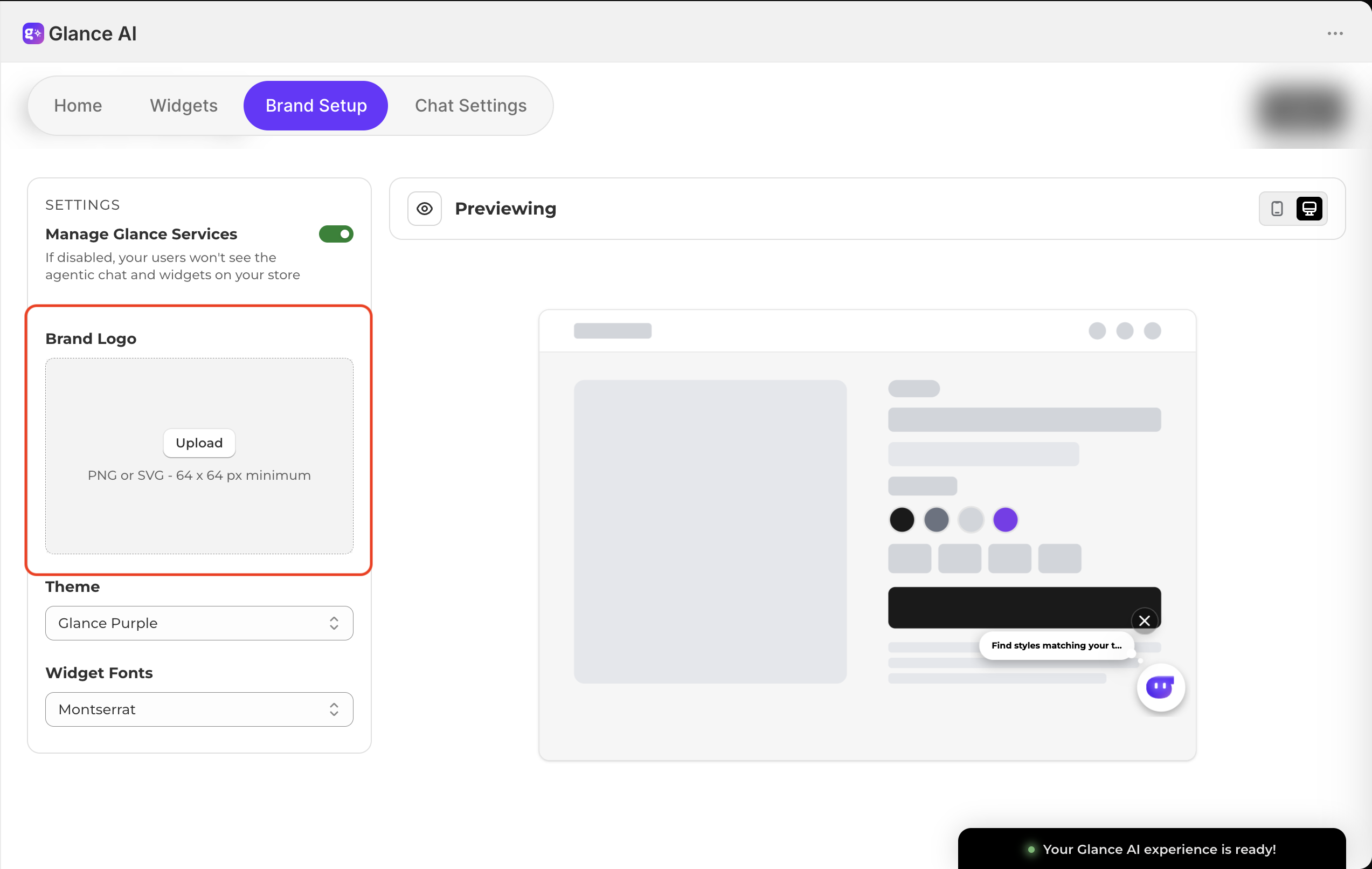
The image Glance displays as your brand mark — for example, in the chat header. Upload a PNG or SVG (minimum 64 × 64 px), and shoppers see your identity right inside the chat, so the assistant reads as yours rather than a generic tool.
Use a transparent, high-resolution logo
A transparent PNG (or an SVG) sits cleanly on any theme background. Upload the sharpest version you have — Glance scales it down as needed, but it can't add detail that isn't there.
Theme
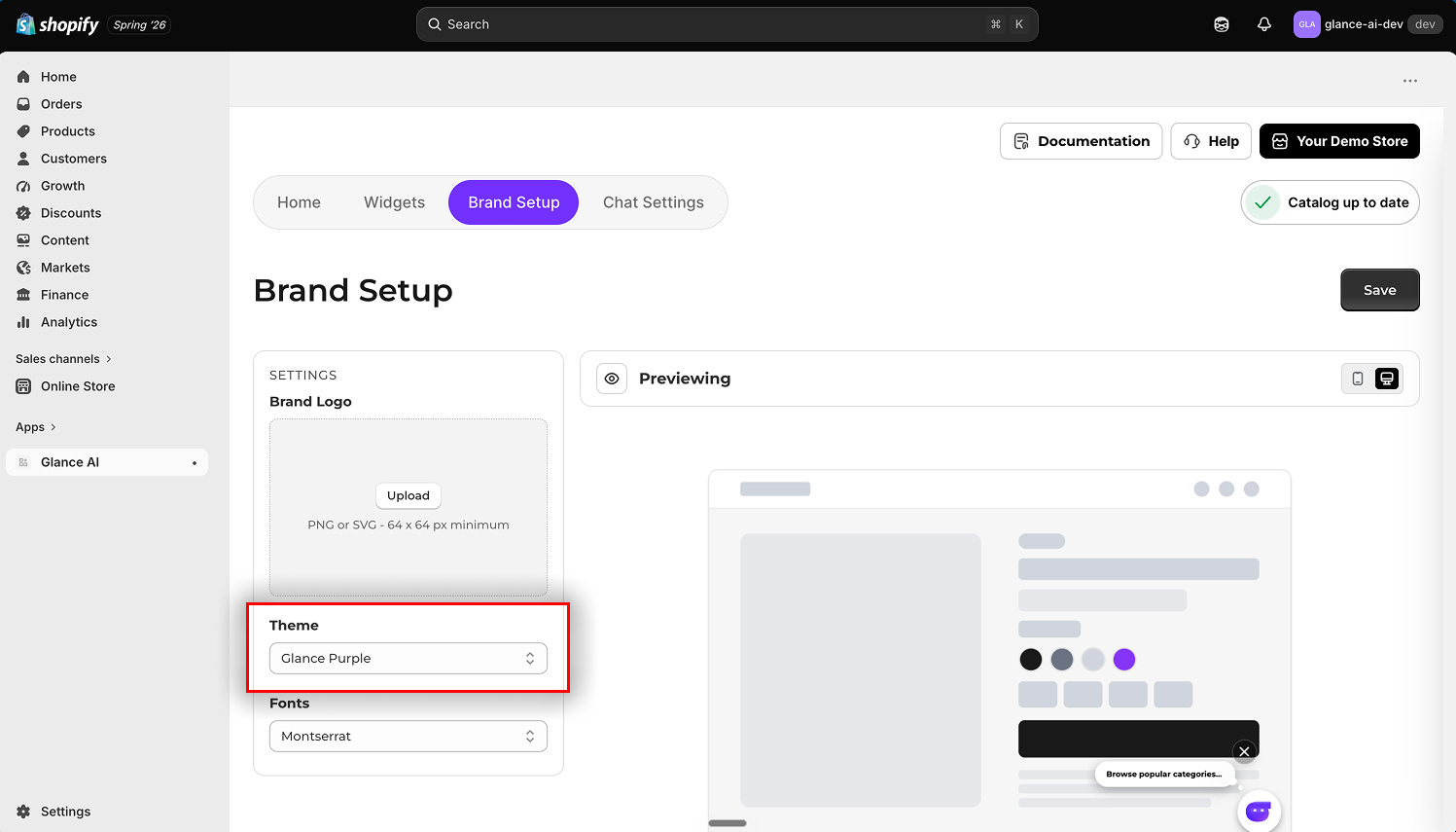
The color theme applied to the Glance experience, such as Glance Purple. It sets the accent palette used across the chat and widgets — buttons, highlights, and interactive accents — so choosing the theme closest to your primary brand color makes Glance blend into your storefront instead of clashing with it.
Fonts
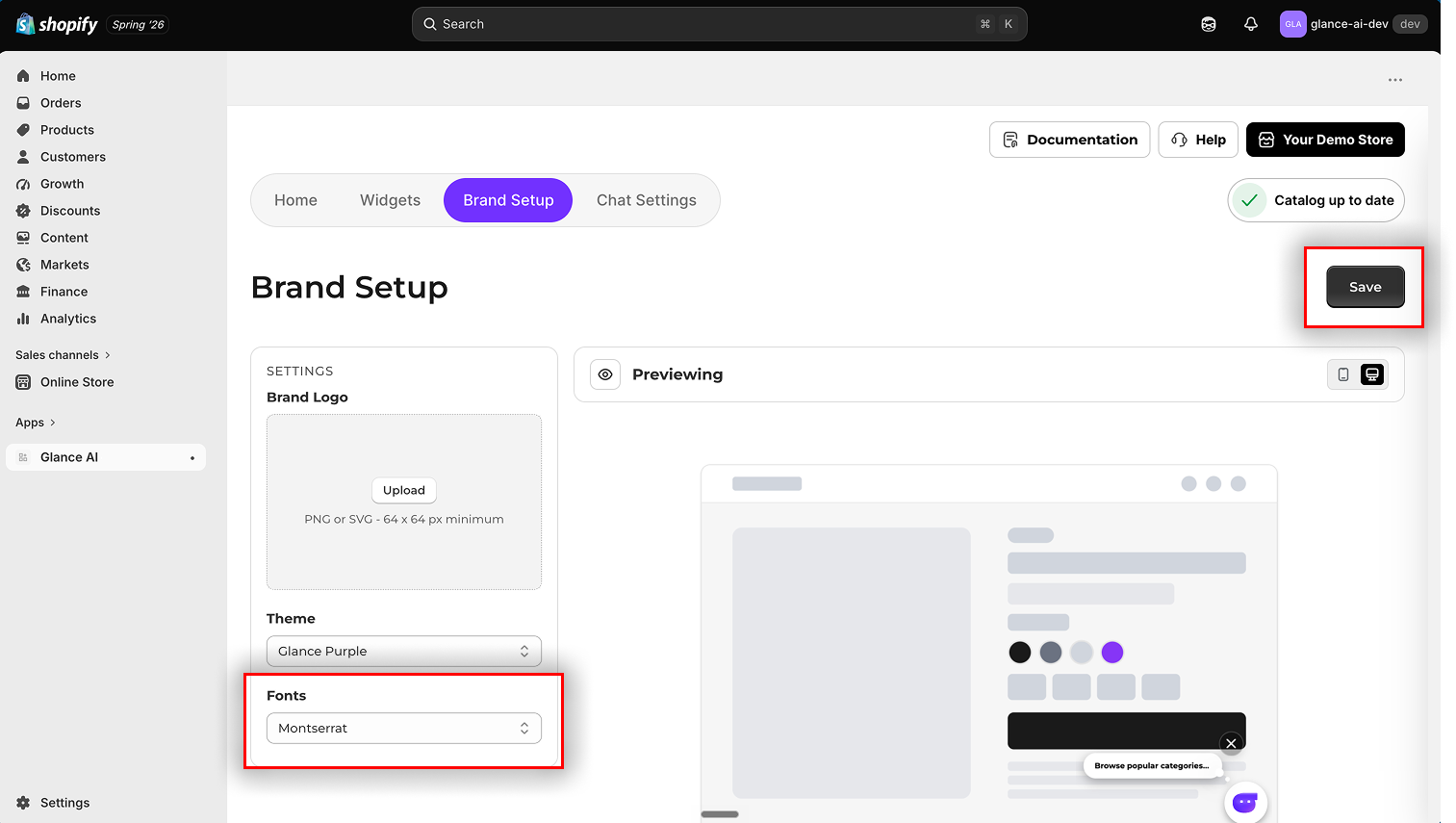
The typeface Glance renders its text in, such as Montserrat. Match it to your store's font and chat replies, labels, and widget copy stay visually consistent with the rest of your pages instead of dropping to a generic system font.
Saving your Brand Setup
Your logo, theme, and font choices go live only when you click Save (top right) — that's the point at which shoppers start seeing them the next time Glance loads on your store.