Chat Settings
Chat Settings is where you tune where and how the Glance chat appears on your store — the position of the chat bubble, its shape, which pages run Glance, how many shoppers see it, and a few experience details. When you're happy, Save & Publish pushes the changes to your live store.
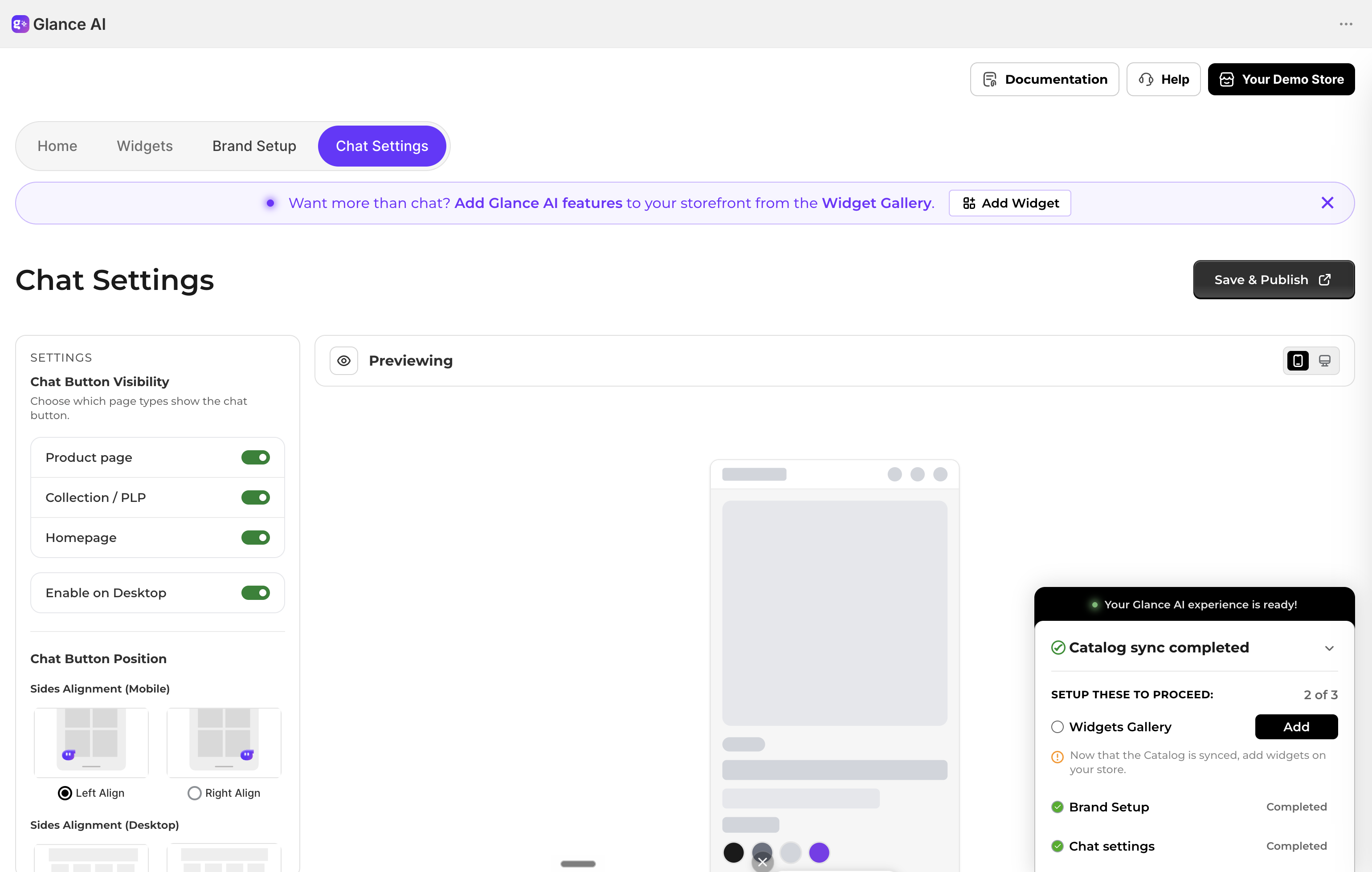
Set up the chat your way
The Documentation button in the on-page banner links back to this guide. Dismiss the banner once you've read it — it won't affect any of your settings.
Chat Bubble Position
Sets where the floating chat bubble (the button shoppers tap to open Glance) sits on screen. Mobile and desktop are configured separately, because the ideal spot differs between a phone and a wide screen.
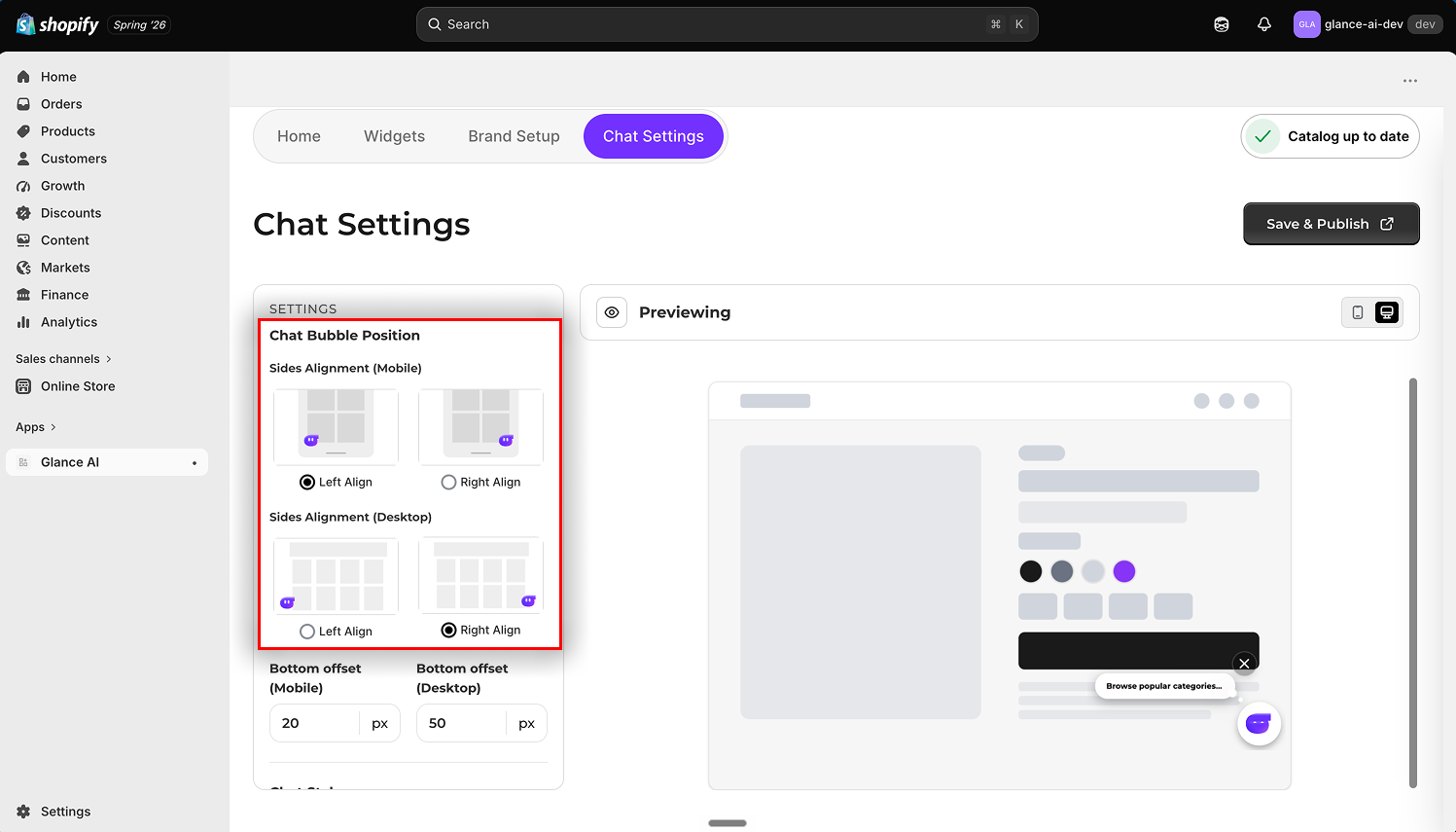
Sides Alignment (Mobile)
Pins the bubble to the left or right edge on mobile. Choose the side that stays clear of your theme's own controls — menus, cart buttons — so nothing overlaps.
Sides Alignment (Desktop)
Pins the bubble to the left or right edge on desktop, tuned independently of mobile. Desktop layouts have more room, so you can place it where it's visible without covering key content.
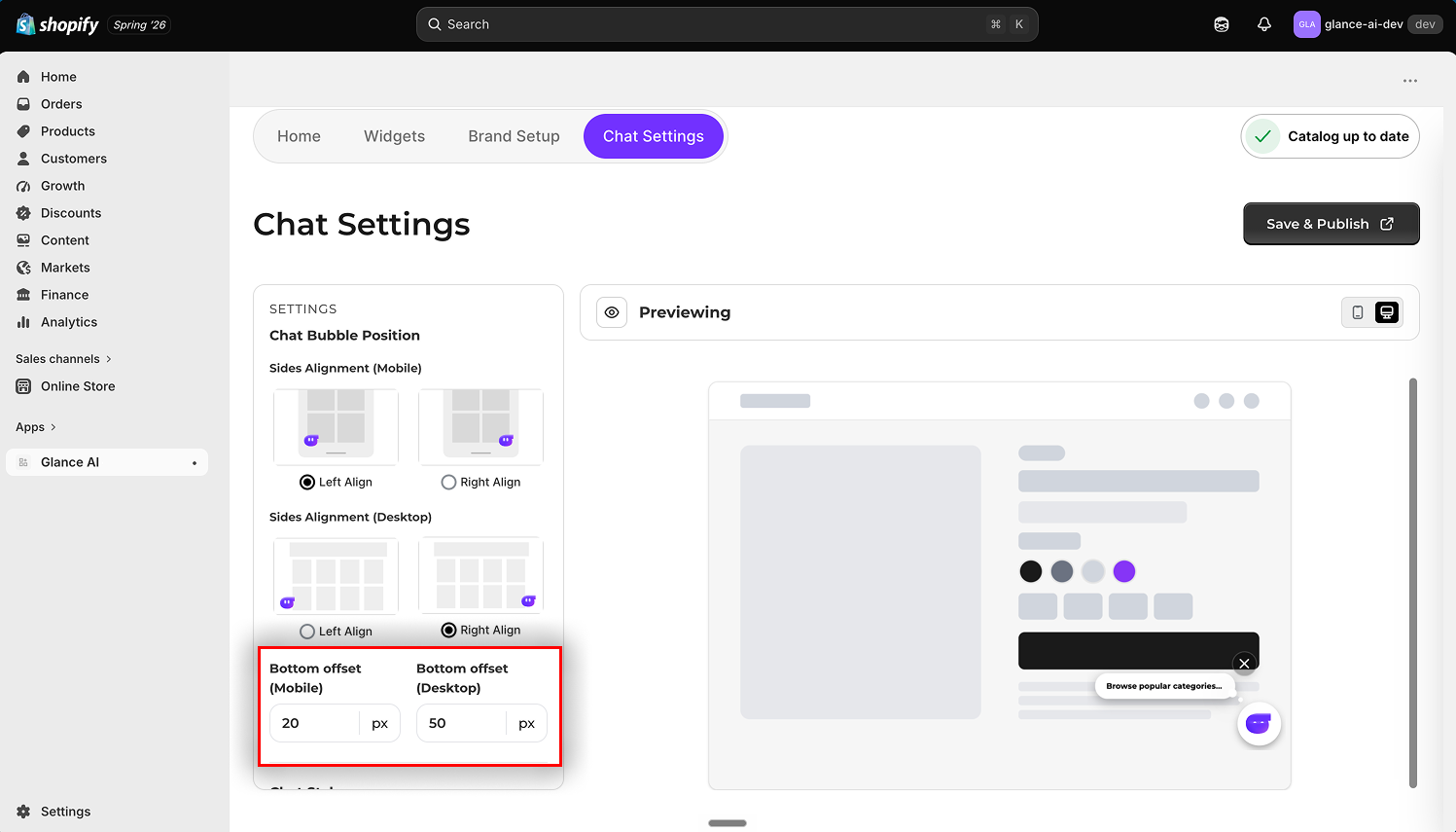
Bottom offset (Mobile)
How far up from the bottom the bubble sits on mobile, in pixels (for example, 20). Raise it to lift the bubble above sticky mobile bars — like an "Add to Cart" footer — so it never hides them.
Bottom offset (Desktop)
The bubble's distance from the bottom on desktop, in pixels (for example, 50). Fine-tune it so the bubble sits comfortably clear of footers and other fixed elements.
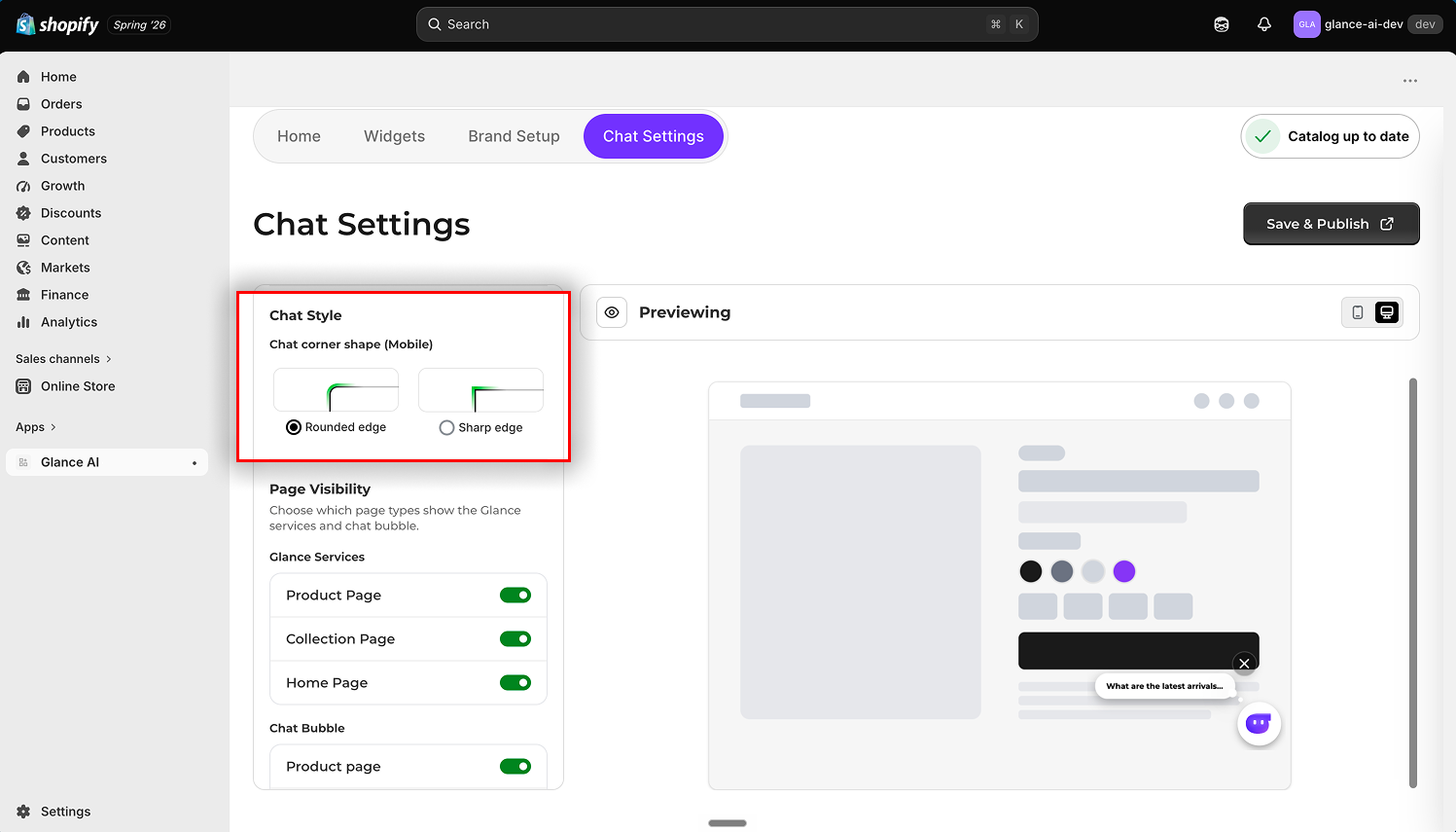
Chat Style
Controls the visual shape of the chat bubble.
Chat corner shape (Mobile)
Switches the bubble between a Rounded edge and a Sharp edge on mobile — rounded for a soft, friendly feel, sharp for a crisp, modern look — so it matches your store's design language.
Page Visibility
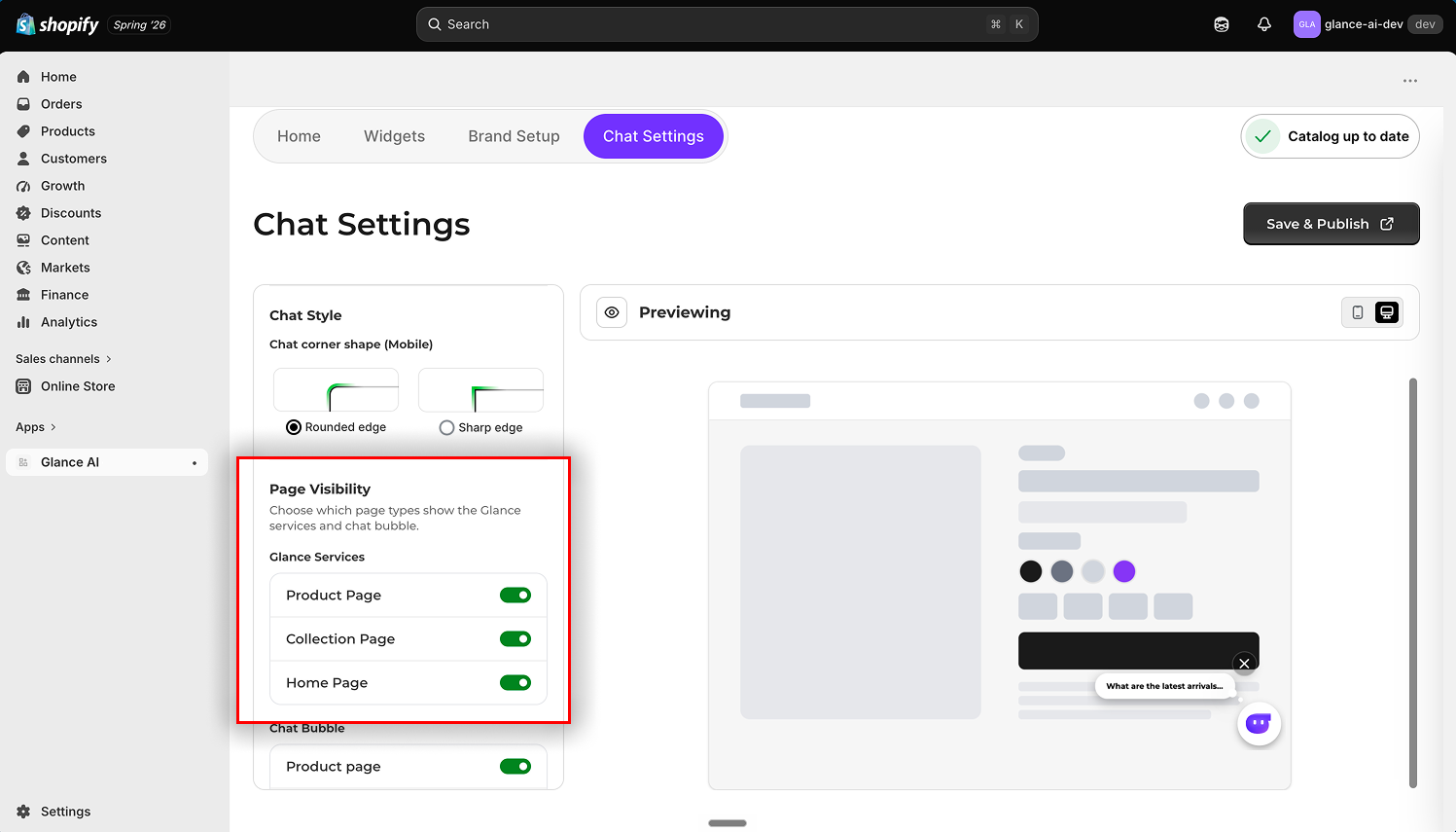
Chooses which page types show the Glance services and chat bubble, each as an on/off toggle, so you can run Glance where it adds value and keep it off pages where it doesn't.
Glance Services
Turns the Glance services (widgets and in-page experiences) on or off per page type:
- Product Page — the individual product detail page.
- Collection Page — category and collection listing pages.
- Home Page — your storefront's landing page.
Use it to focus Glance on high-intent pages like product pages, or to roll it out one page type at a time.
Chat Bubble
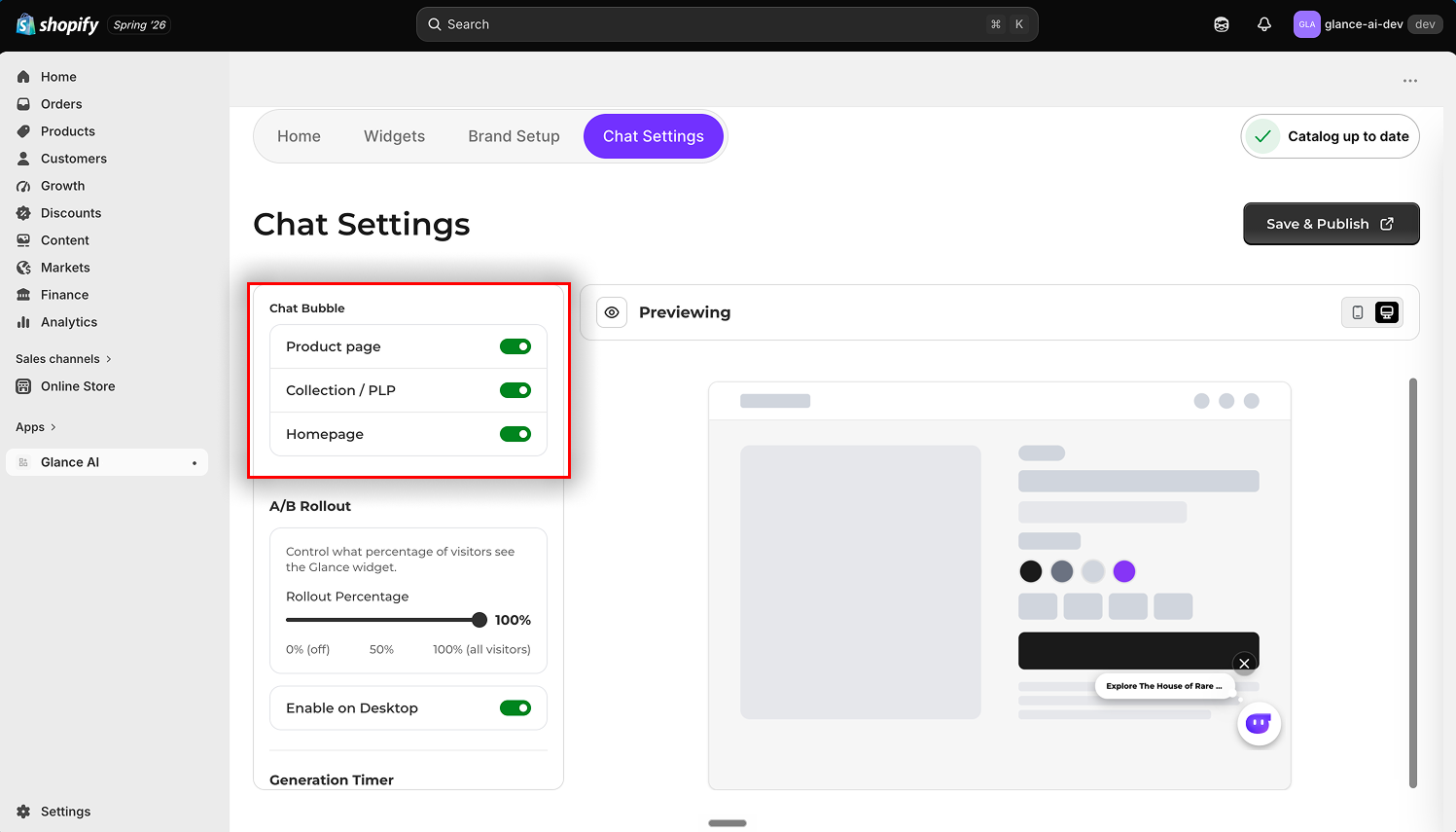
Turns the floating chat bubble on or off per page type, independently of the services above:
- Product page — product detail pages.
- Collection / PLP — collection and product-listing pages.
- Homepage — your landing page.
This lets you offer the chat assistant on some pages without cluttering others — for example, keeping it on product and collection pages but hiding it on the homepage.
A/B Rollout
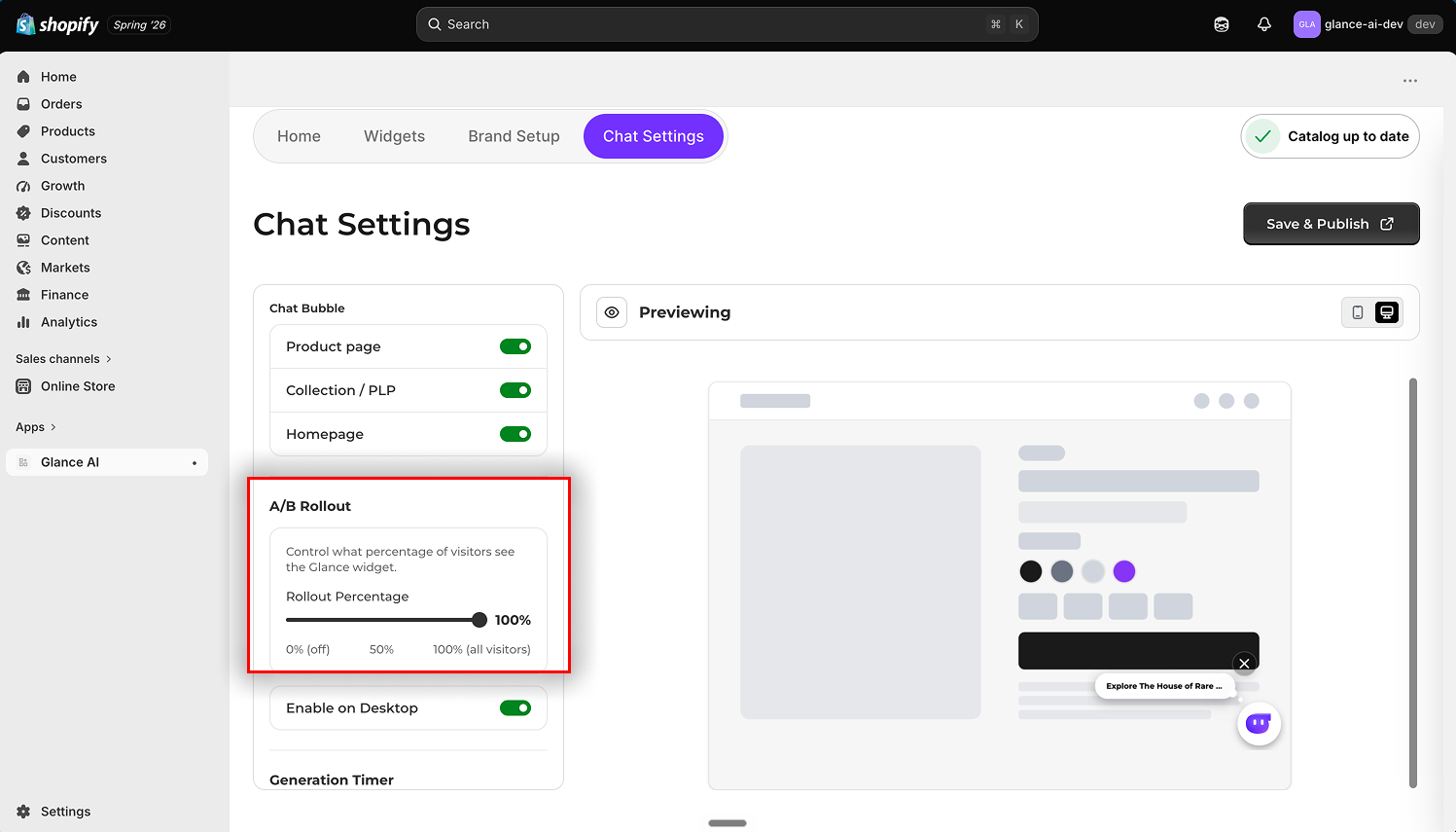
A slider that controls what percentage of visitors see the Glance widget, from 0% (off for everyone) through 50% (half) to 100% (all visitors). Start small — say 10–25% — watch your conversion and engagement metrics, then increase once you're confident.
Why roll out gradually?
A staged rollout lets you catch any theme-specific styling issues and measure Glance's impact on a subset of shoppers — with no risk to the rest of your store.
Enable on Desktop
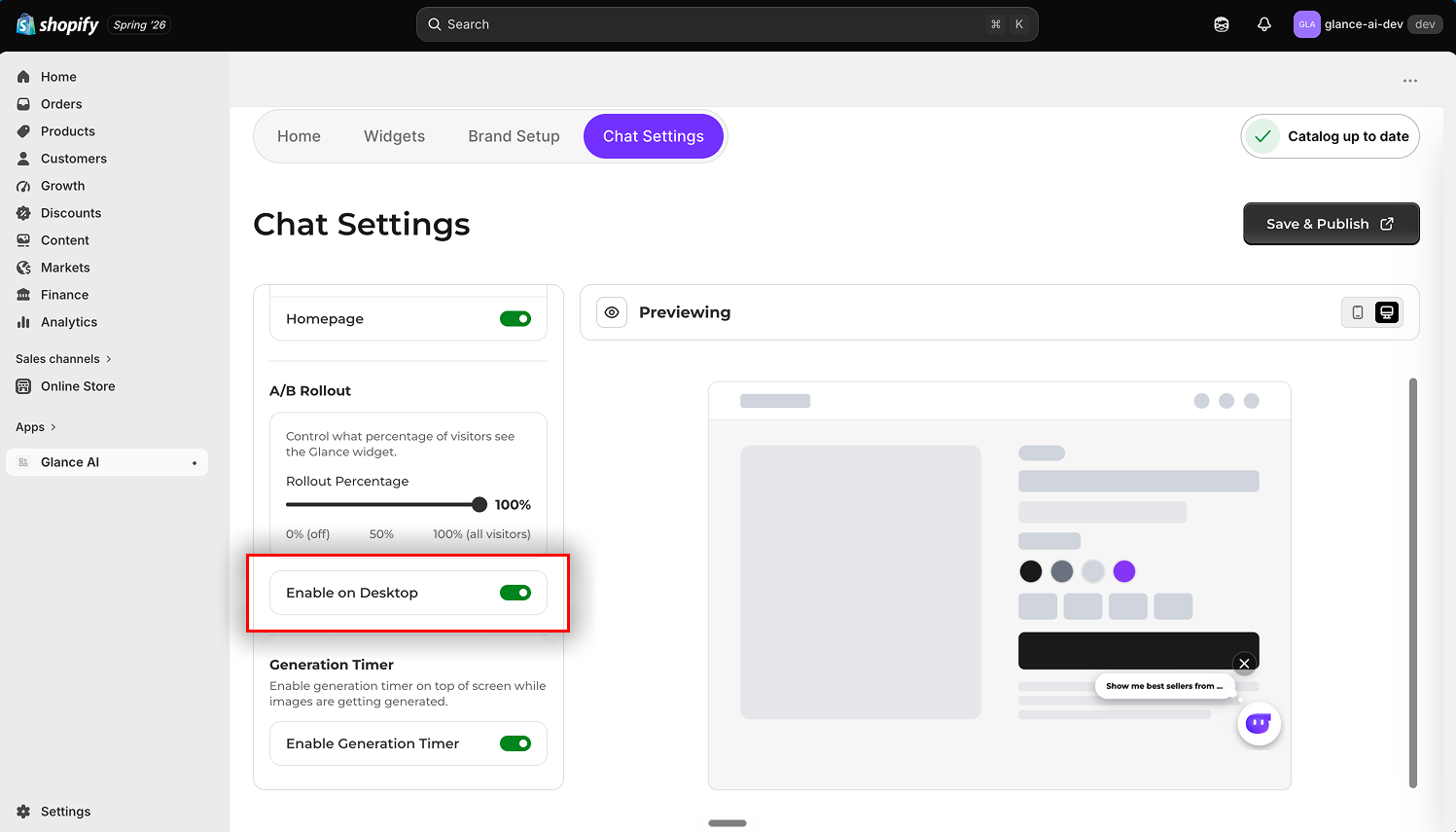
A toggle that extends Glance to desktop visitors. Glance is optimized for mobile, where most shoppers browse; leave it off to stay mobile-only while you validate, or turn it on to run the same experience on desktop.
Generation Timer
The Enable Generation Timer toggle shows a timer at the top of the screen while images are being generated — for example, during a virtual try-on. It sets expectations during the short wait, so shoppers know Glance is working and are less likely to abandon the try-on.
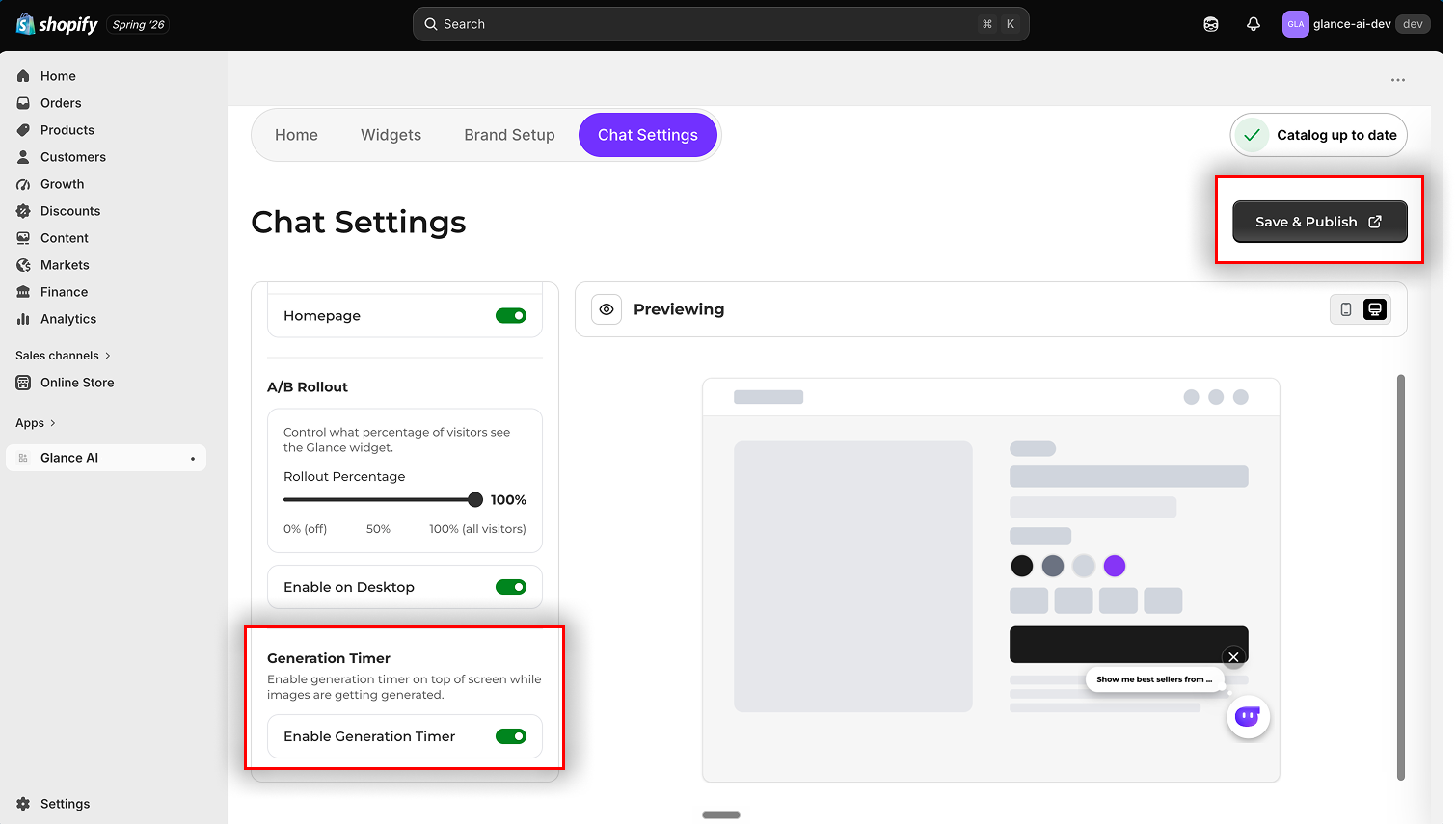
Saving your Chat Settings
Every setting on this page — position, style, visibility, rollout, desktop, and timer — takes effect only when you click Save & Publish (top right), at which point shoppers see the changes the next time Glance loads.