Theme Code Editor Setup
For Direct Code Integration on Shopify, you'll paste the snippet into a theme file using the Shopify code editor.
Navigate to Theme Editor
- Go to your Shopify Admin Panel
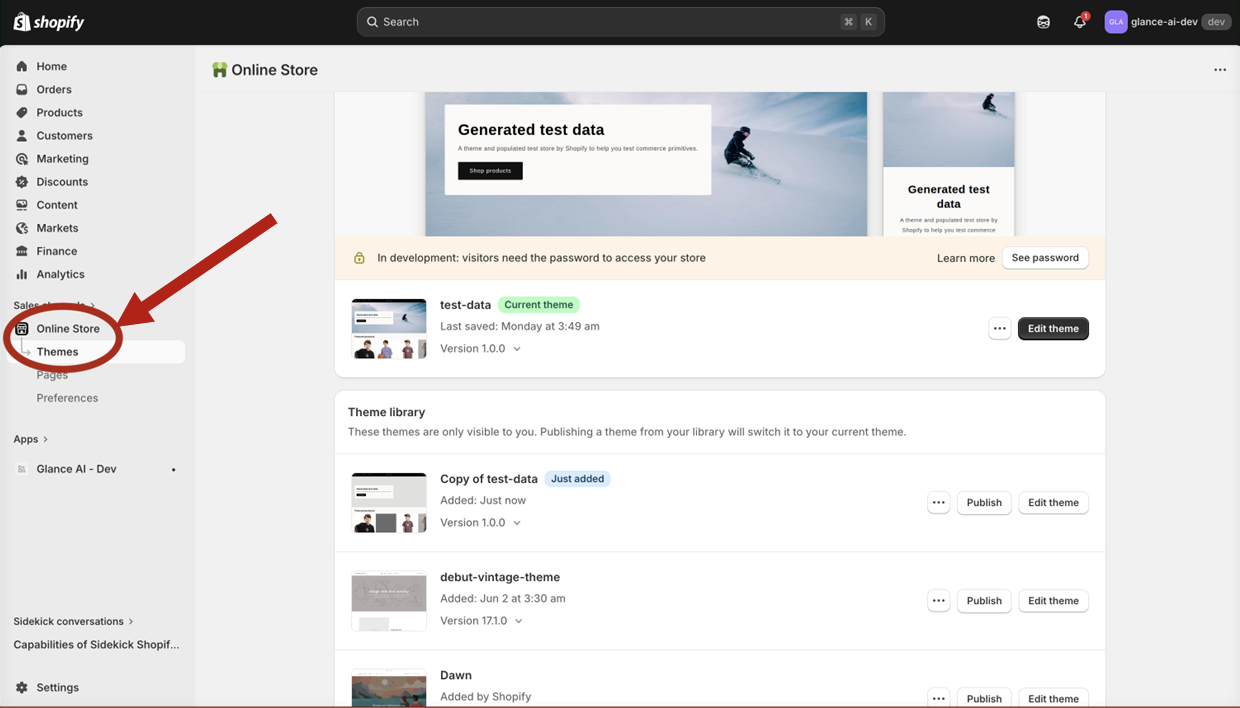
- Navigate to Online Store → Themes
- Click the three-dot menu (...) on your active theme
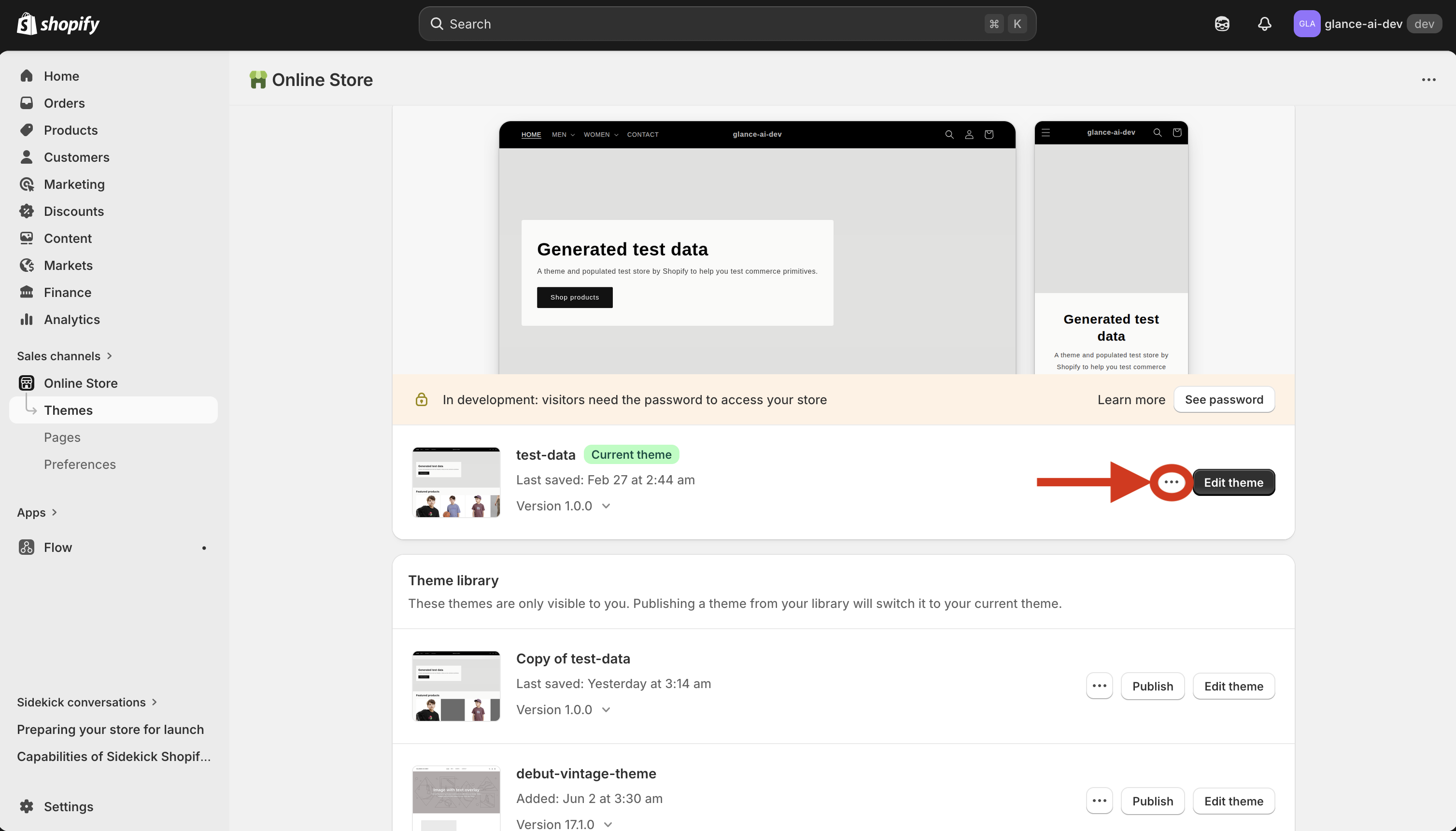
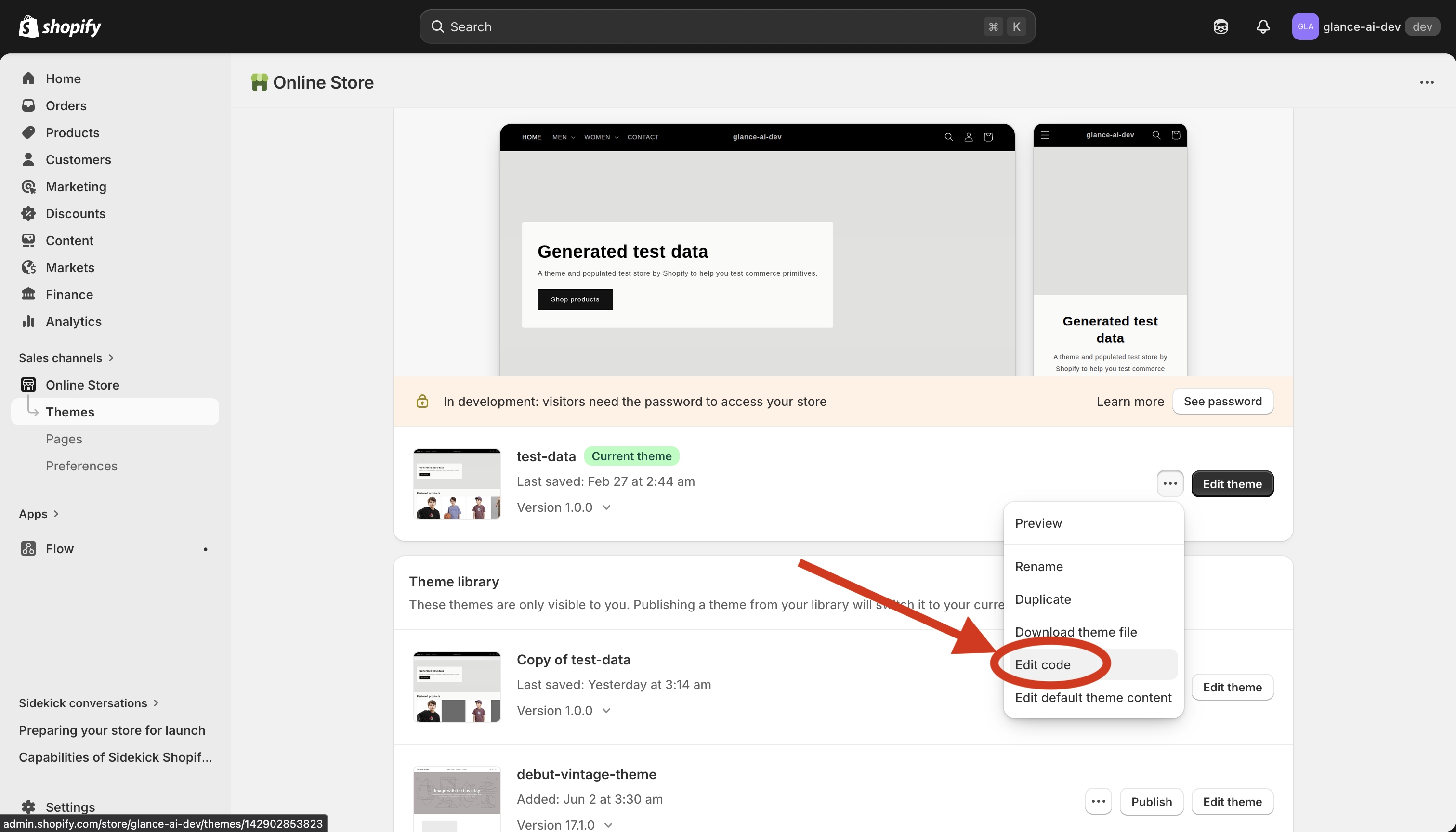
- Select Edit code
Duplicate your theme first
Before editing code, duplicate your live theme (three-dot menu → Duplicate). Edit the copy, verify the widget, then publish. If anything goes wrong, your live theme is untouched.
Choose the Correct File
Widgets only work on the following liquid files (in the Sections folder):
| .liquid File | Widget Location |
|---|---|
main-product.liquid |
Product pages |
main-collection-banner.liquid |
Collection banner |
main-collection-product-grid.liquid |
Collection product grid |
header.liquid |
All pages (header) |
footer.liquid |
All pages (footer) |
Important
Widgets are only supported on the files listed above. Placing the snippet in other files may not render correctly.
Add the Code
- Open the chosen .liquid file
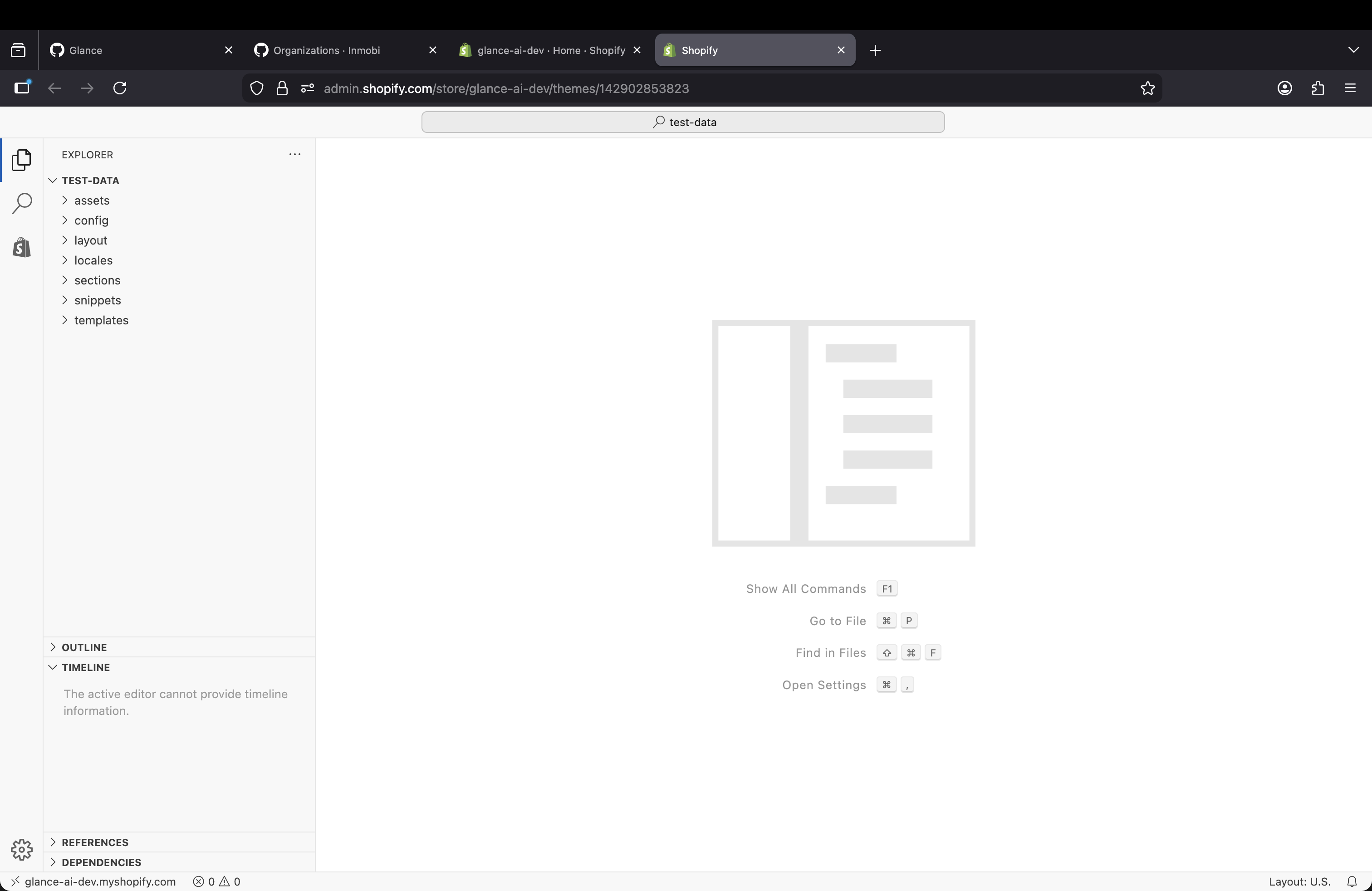
- Locate where you want the widget to appear:
- For product pages: Add in
main-product.liquidafter the product description - For collection pages: Add in
main-collection-banner.liquidormain-collection-product-grid.liquid -
For header/footer: Add in
header.liquidorfooter.liquid -
Paste the complete code snippet
- Click Save
✓ You'll know it worked when the widget renders on the corresponding page in a mobile viewport, and the shimmer placeholder is replaced by the live widget.