Shopify Admin Integration (Recommended)
This is the easiest method for Shopify stores using the Glance AI app — no code required.
Tip
If you're unable to place widgets by dragging and dropping, refer to the Direct Code Integration page and follow those steps to successfully place widgets on your store.
Add Widget Block to Theme
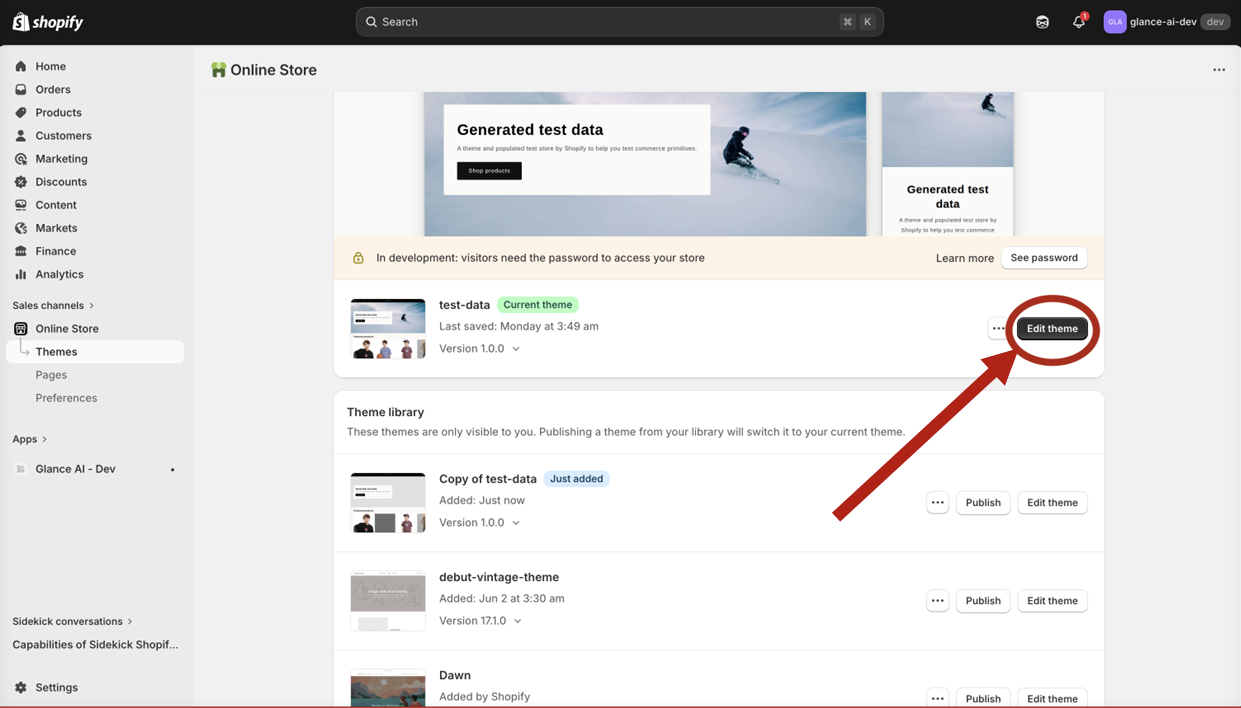
- Go to Online Store → Themes in your Shopify admin
- Click Customize on your active theme
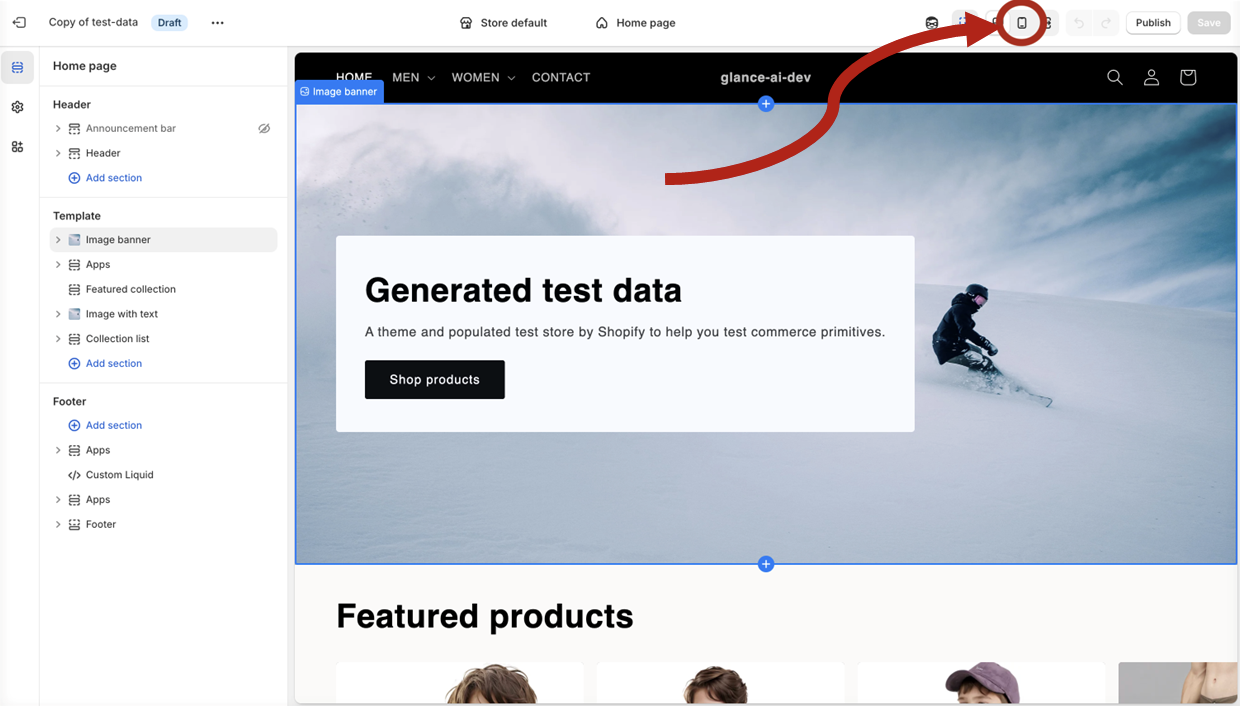
- Switch to mobile preview mode by clicking the phone icon in the top bar
Why mobile?
Glance AI widgets are optimized for mobile devices, where most shoppers browse and try-on engagement is highest. Always place and preview widgets in mobile mode first.
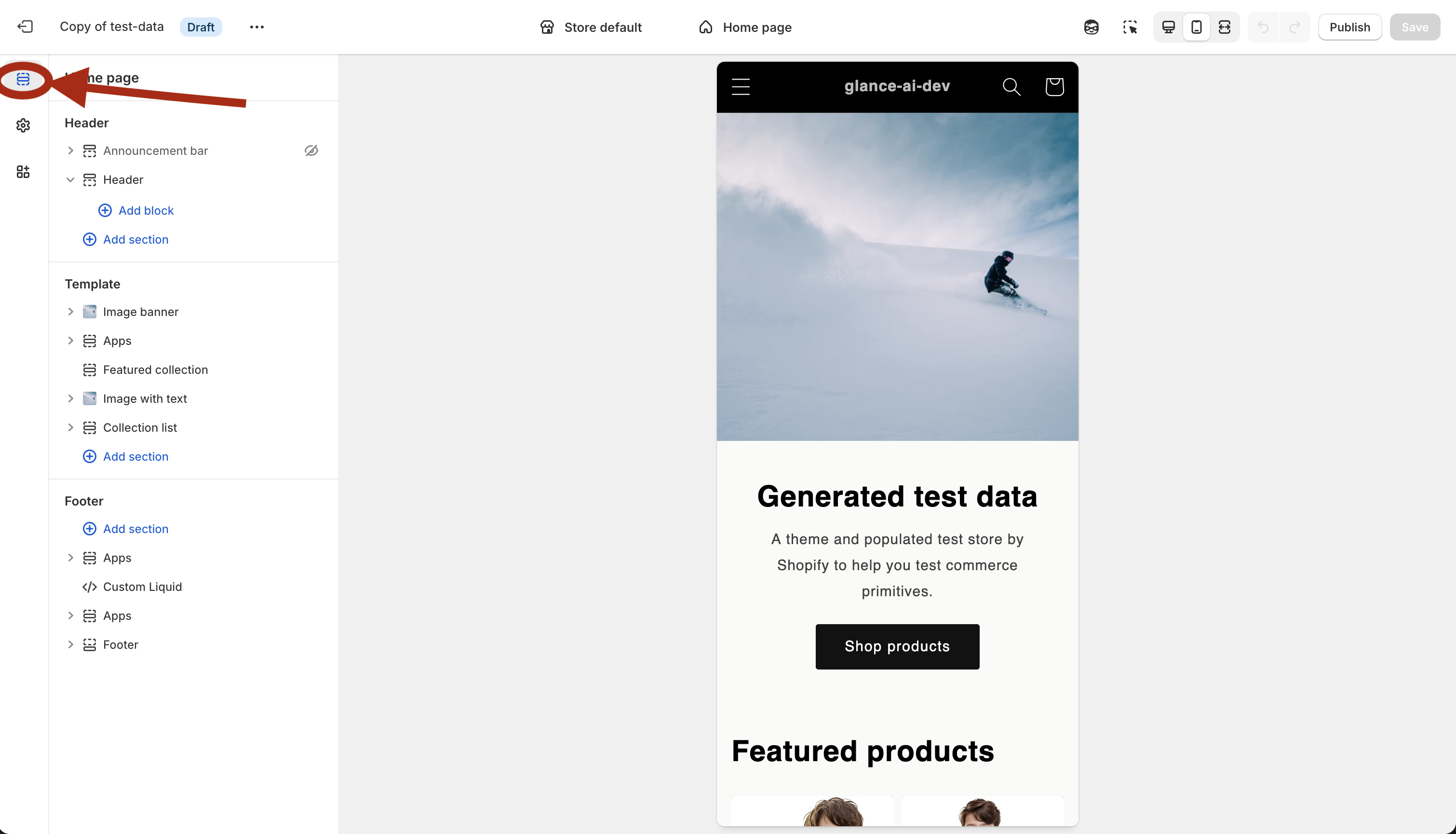
- Navigate to the page/section where you want the widget (e.g., Home page, Header section)
- Click Add block to open the block selector
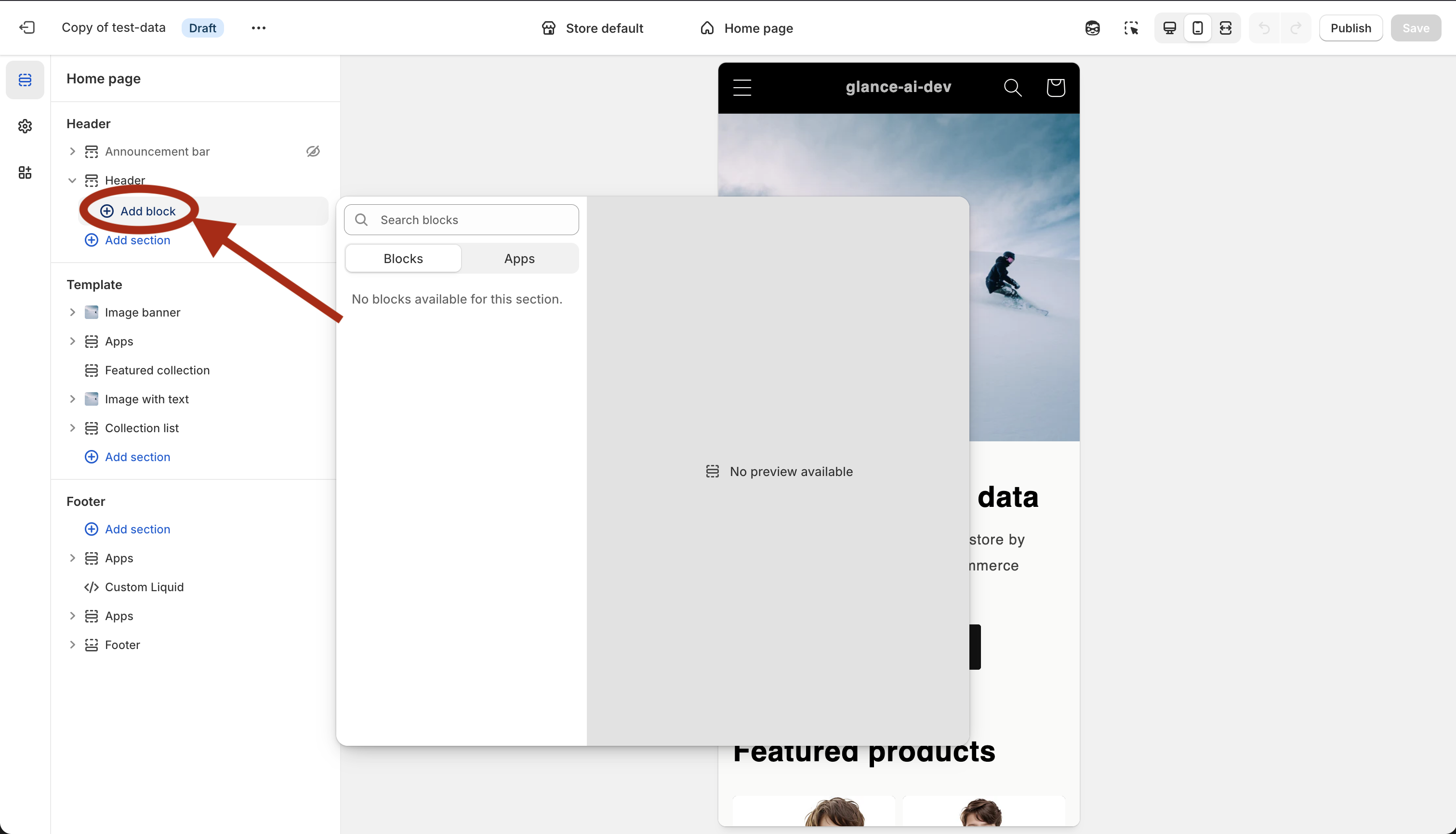
- Switch to the Apps tab and select Glance AI Widget
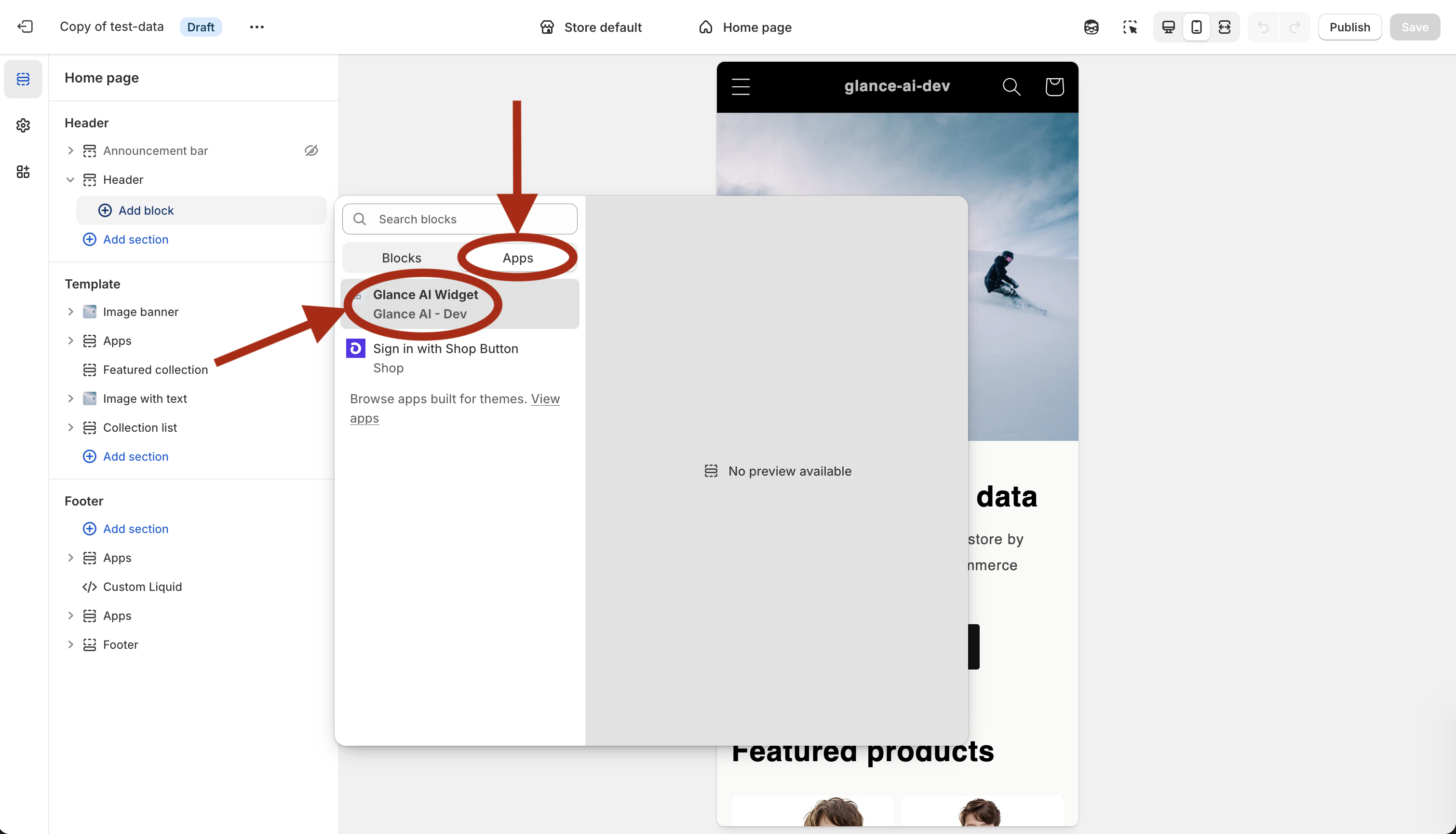
✓ You'll know it worked when a Glance AI Widget block appears in the section and its settings panel opens.
Configure Widget Settings
- After adding the widget, the settings panel appears
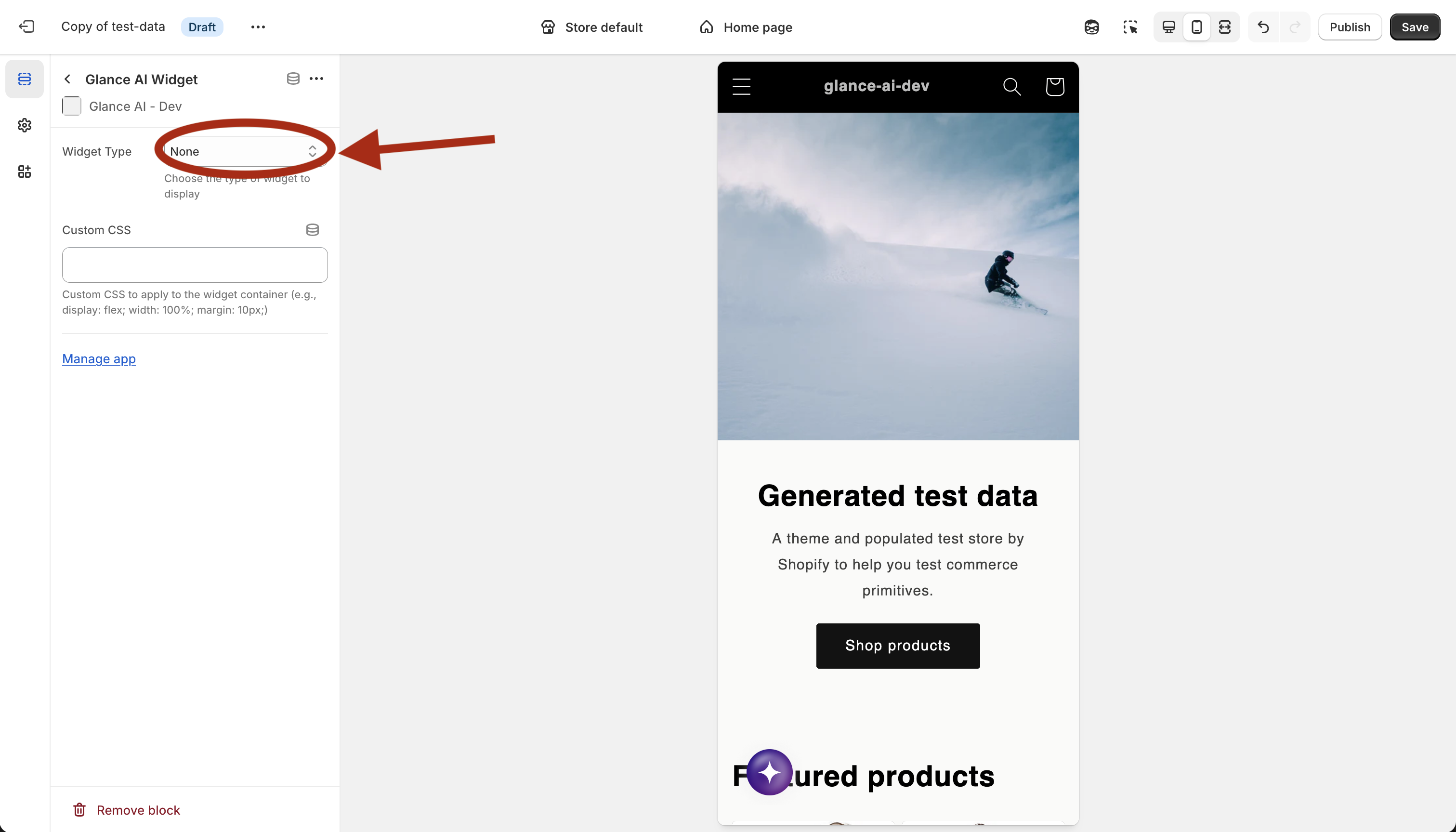
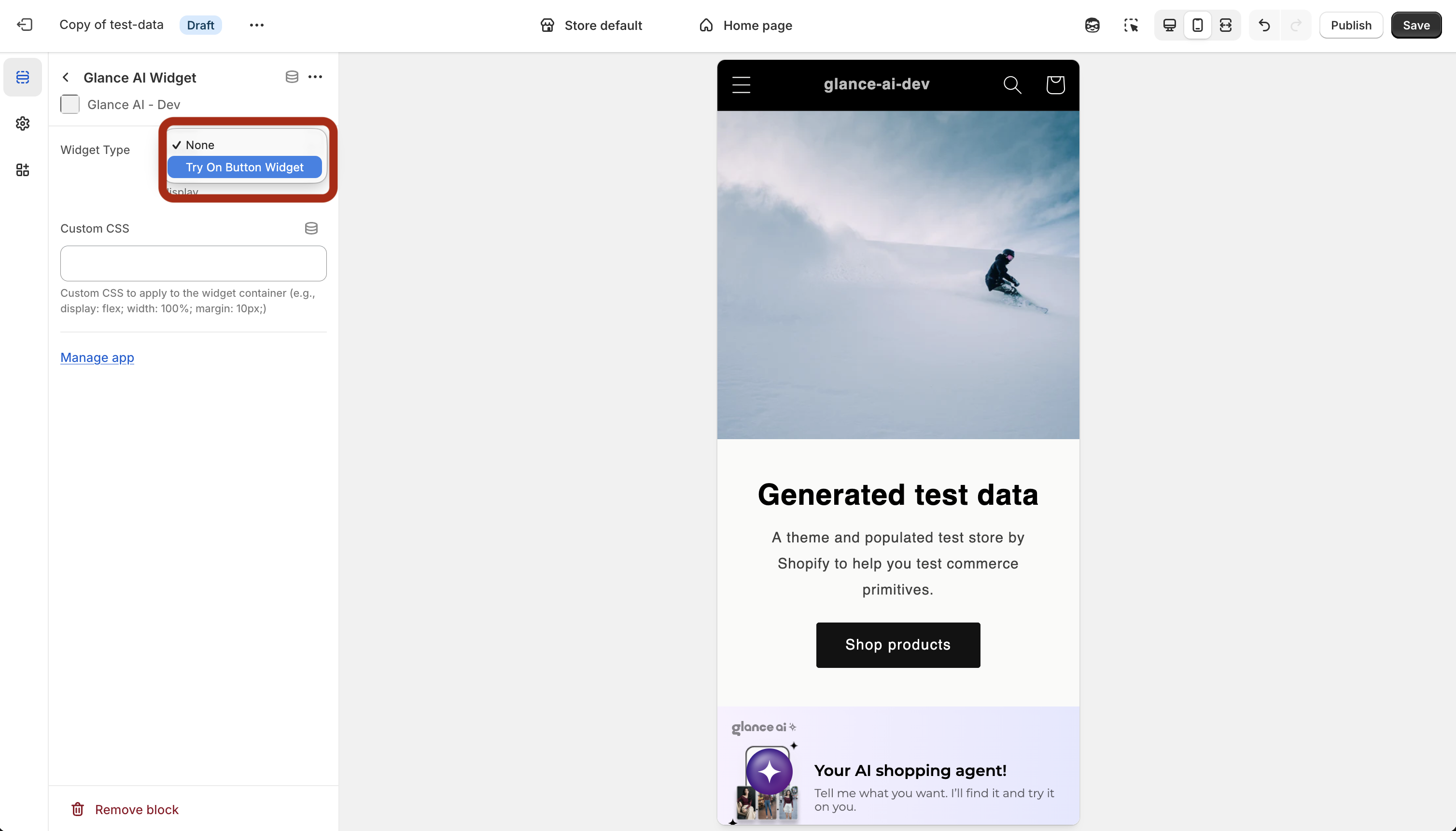
- Select the widget type from the dropdown (AI Chat Stylist, Virtual Try-On Button, Virtual Try-On Banner, Mix & Match, AI Search, Outfit of the Day, or AI Product Summary)
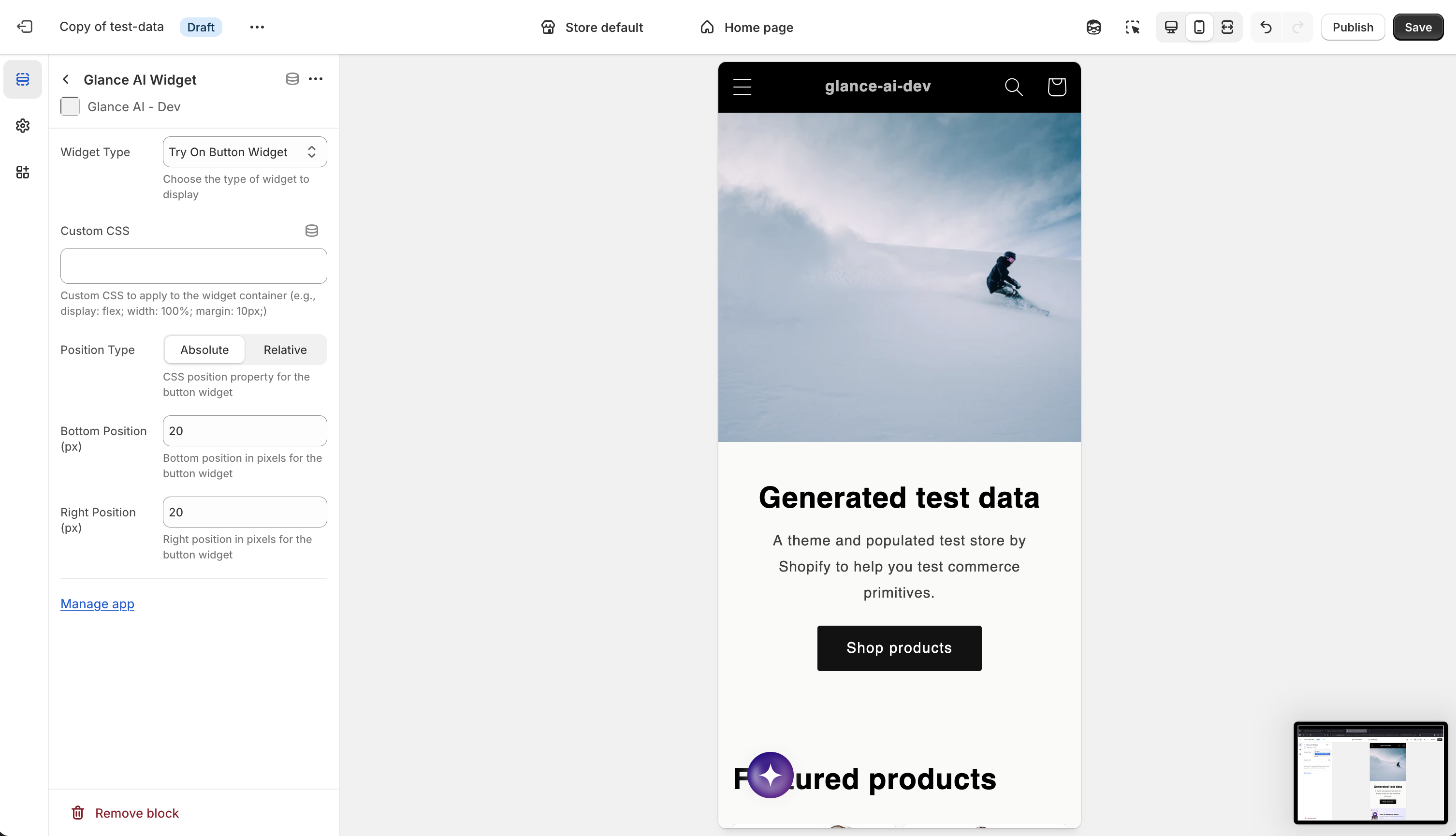
- Configure the options for your chosen type:
| Option | Applies to | What it does |
|---|---|---|
| Custom CSS | All | Additional styling for the widget container |
| Position Type | Button widgets | Absolute or relative positioning |
| Button Placement | Button widgets | Left or right side placement |
| Bottom Position | Button widgets | Bottom offset in pixels |
| Side Position | Button widgets | Margin from the side in pixels |
Add one widget per intent
You can place multiple Glance widgets across different sections — e.g., a Try-On Button on product pages and a Mix & Match block on your home page. Add a separate block for each.
Save and Publish
- Save your theme customization
- The widget will automatically appear on your store
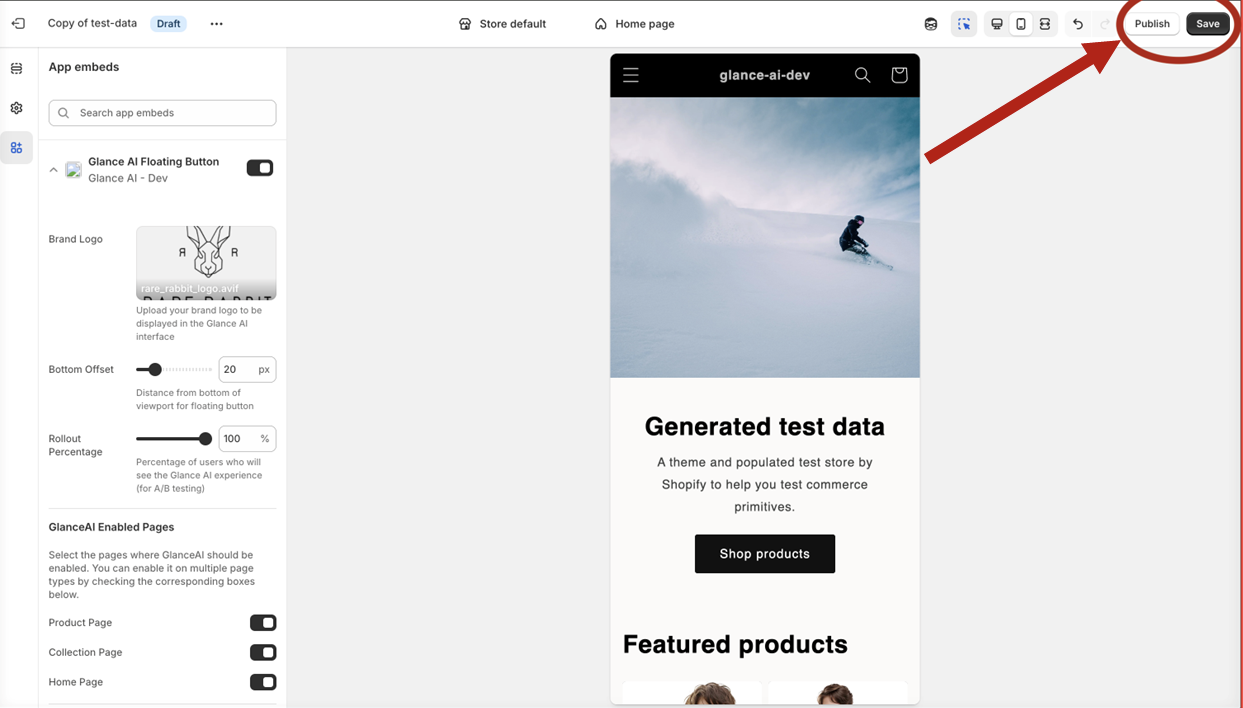
✓ You'll know it worked when the widget renders in your mobile preview and on your live store (in an incognito window).
Working in a draft theme?
If you're editing a draft theme, remember to publish it before shoppers can see the widget.